Everything SwitchGuard can do
Every part of the app, with where to find it. All of it is free; no Pro tier, no hidden costs.
Alarms and alerts
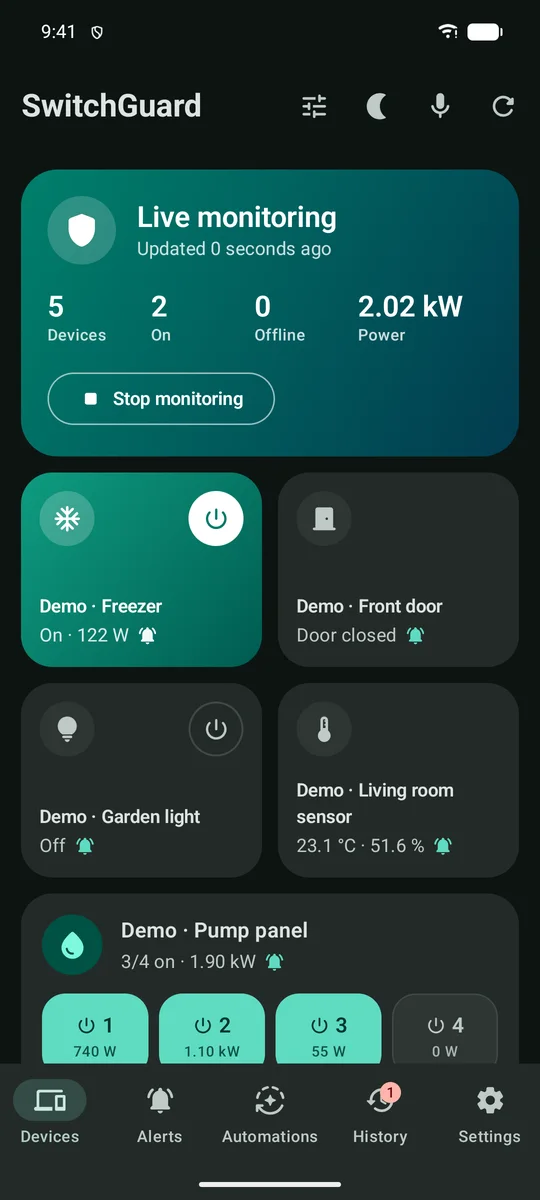
For every device you watch, you decide what rings an alarm and what sends a notification.
- An alarm that won't stop: rings until you dismiss it, in silent mode and with the screen off. Opens full screen on the lock screen.
- Sound per device: a different alarm sound, volume and vibration for each device; try it with the test alarm.
- Device alerts: switched on, switched off, went offline, came back; alarm, notification or nothing for each.
- Alert categories: Critical, Important and Normal; choose which still ring during quiet hours.
- Conditional alerts: when a device stays on or off for a while, or its power changes.
- Ignore brief drop-outs: no false alarm when Wi-Fi blips for a few seconds.
- Session warning: a loud warning if the eWeLink session is lost (e.g. the same account signs in on another phone).
Where: Settings → Alarm · Alerts tab
Smart alerts and telling others
Someone finds out even when you are away from your phone.
- Power cut detection: several devices dropping at once is reported as an outage.
- Consumption alerts and weekly report: a warning when energy use rises unusually.
- Daily summary: the day's events in one notification.
- Second person on Telegram: if an alarm isn't dismissed in time, the people you choose get a message.
- Escalation: you first, then the others in turn.
- Phone call: on a critical alarm, the number you set is called.
Where: Settings → Smart alerts
Devices and control
Your eWeLink and Tuya devices in one live list.
- Live status: instant updates over the eWeLink WebSocket, with polling as a fallback.
- Tap to switch: tap a card; press and drag to reorder.
- Multi-channel devices: each channel of SPM-4Relay, DUALR3 and similar devices on its own.
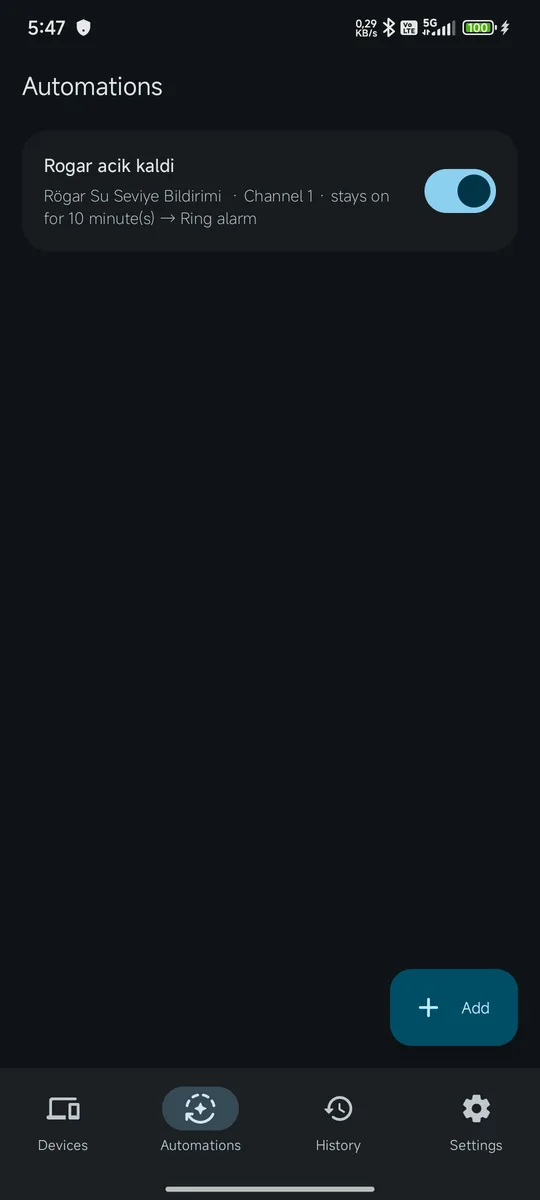
- Device details: power, energy, channels and sensor history on one screen.
- Demo without an account: try the whole app with sample devices before connecting anything.
Where: Devices tab
Sensors, power and energy
Not just on/off: every measured value is watched.
- Sensors: temperature, humidity, door, motion, water leak and battery level.
- Threshold alerts: when a value goes above or below the limit you set.
- Up to 400 days of history: browse sensor values back in time on a chart.
- Power metering: watts, voltage, current and kWh.
- Channel power dropped: an alarm for a device that is on but no longer draws power (a stuck pump, a stopped compressor).
Where: Device details · Alerts → Conditional alerts
Automation
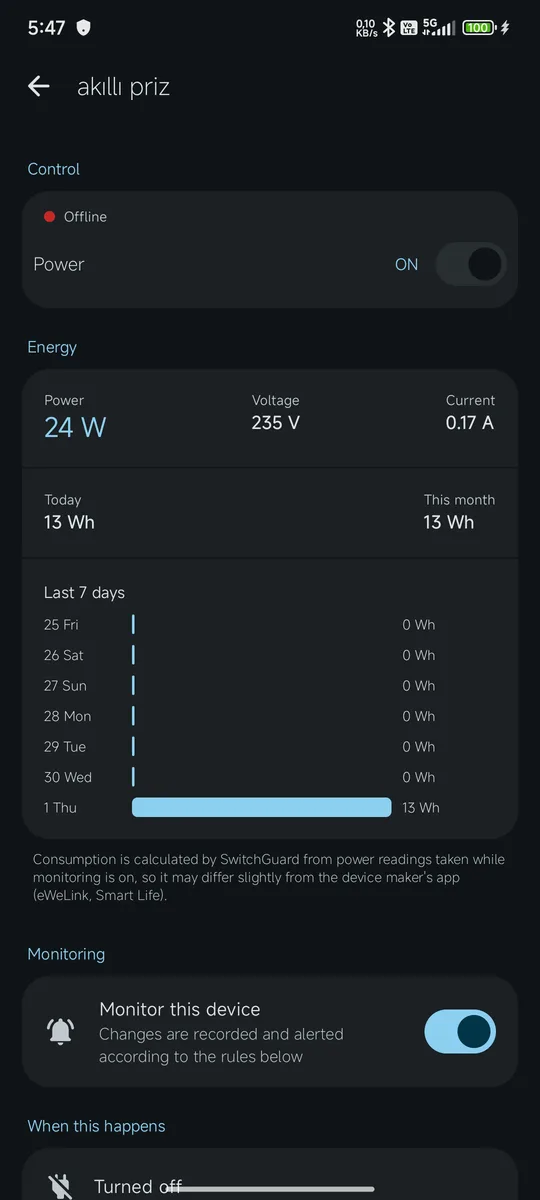
Groups, cycles, rules and scenes. Your phone becomes an automation hub.
- Groups: switch several devices as if they were one.
- Cycles and timers: countdown, on-then-off, on/off, one after another, custom steps. Start with a button, at set times and days, or within a time window; when done, turn off, turn on, leave as is or restore the previous state.
- Rules: IF trigger → THEN action; with an optional delay, time window, days, extra conditions (all / any) and only when home / away.
- Triggers: switched on, switched off, stayed on/off for X minutes, went offline/online, power above/below X W, channel power dropped, sensor active/clear, sensor value above/below, outside temperature, sunrise/sunset, entered/left a zone, cycle started/finished.
- Actions: turn on, turn off, ring an alarm, send a notification, run a scene, start/stop a cycle.
- Scenes: put many devices into the state you want with one tap.
- eWeLink timers: manage the device's own timers from the app.
Where: Automation tab
Location, zones and weather
Your location stays on the phone and is never sent anywhere.
- Zones: lights on as you get home, everything off when you leave.
- Home / away condition: rules that only run while you are home or away.
- Sunrise and sunset: calculated for where you are.
- Outside temperature: conditions like “if it's below 5 °C outside” using Open-Meteo weather.
Where: Settings → Location and zones
Chat, voice commands and the Telegram bot
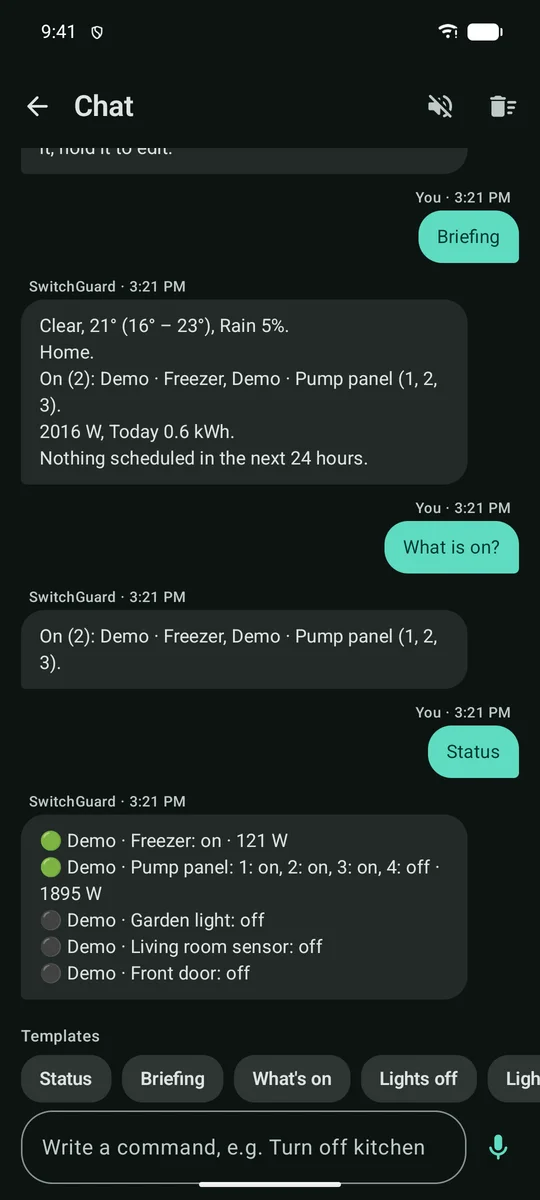
Control everything by typing or speaking, no menus needed.
- Natural commands: type or speak; the answer can be read aloud.
- Timed commands: “Turn the pump on for 20 minutes”, “Turn the kitchen off in 10 minutes”.
- Group commands: “Turn off all lights” switches every match; “Turn everything off” asks first.
- Questions: “What's on?”, “How many watts is the AC using?”, “How warm is it?”, “Today's summary”.
- Chat templates: run a command by itself at a set time or when something happens.
- Telegram bot: the same commands work from Telegram, even when you are away.
Where: Devices → top bar → Chat
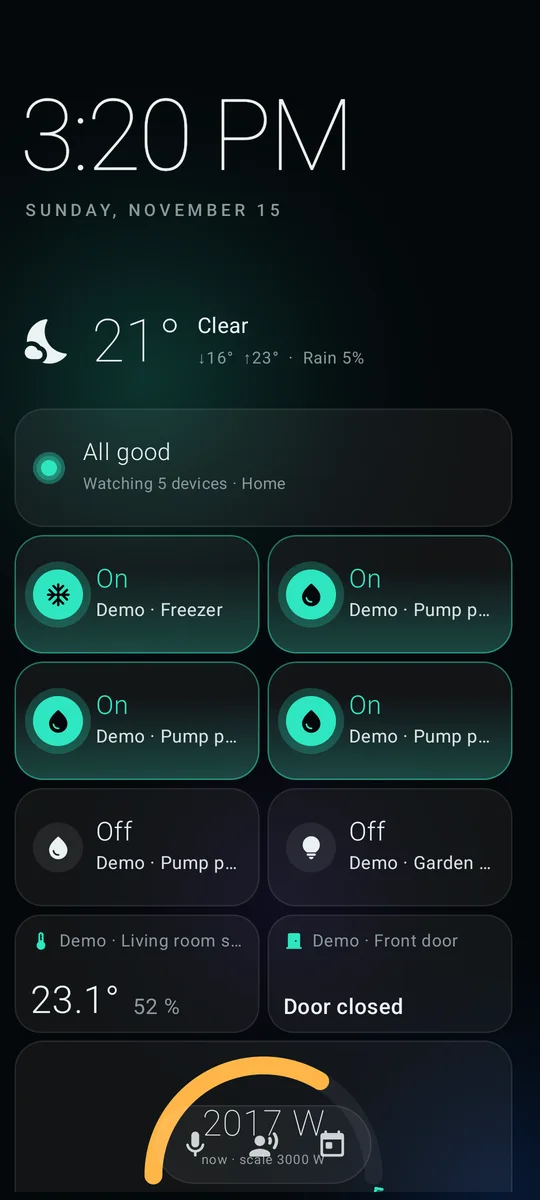
Standby screen and widgets
An old phone or a wall tablet becomes a control panel you glance at.
- Widget grid: clock, weather, live power, sensors, rules and recent activity; press and hold to move, drag the corner to resize.
- Status glow: teal all good, amber attention, red alarm.
- Screen saver: starts by itself while charging.
- Home screen widgets: device, group and voice command widgets.
Where: Settings → Standby screen
History and reports
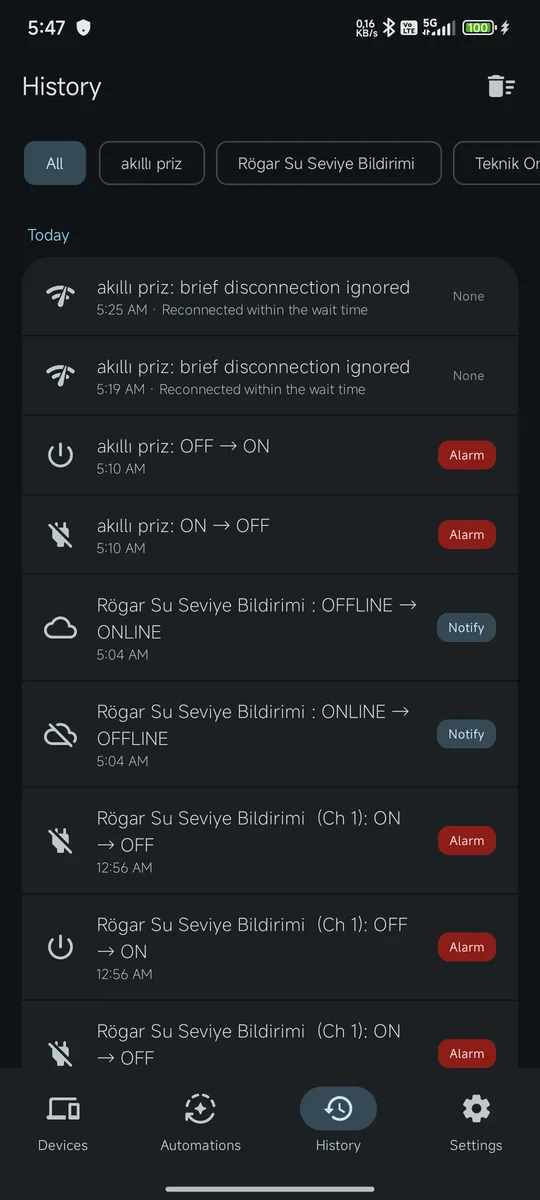
What happened and when, on record.
- Every event: switching, going offline, alarms, automations.
- Filters: by device, type and date.
- Export and report: save the log as a file or share it.
Where: History tab
Platforms
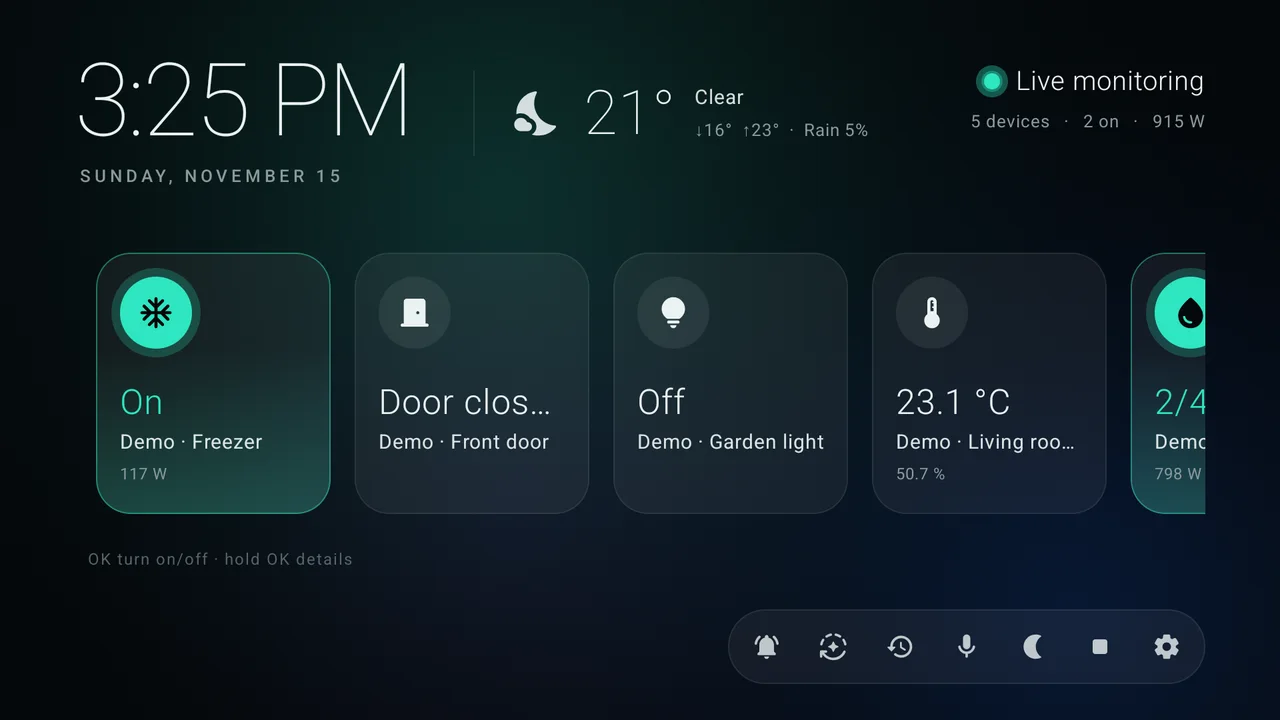
One app, with a layout made for each screen.
- Phone: always with you; full-screen alarm on the lock screen.
- Tablet: side rail and a wide grid; perfect as a wall panel.
- Android TV: big clock and weather, cards you browse with the remote; OK asks first. Works as a screen saver too.
- Windows 10/11: desktop monitoring, notifications, chat and voice commands, the standby widget grid and desktop-only sensor questions. Zones, home screen widgets and the TV dashboard are Android only.
Settings, backup and languages
Keep your setup safe and move it to other devices.
- 20 languages: switch the app language any time.
- Back up / restore: all settings, rules and automations in one file.
- Send to another device: from phone to tablet or TV over home Wi-Fi.
- Permissions helper: everything the alarm needs to work on any phone, on one screen, including Xiaomi-specific steps.
- Background monitoring: choose the polling interval.
- Help: setup guide, eWeLink/Tuya guides and sending a bug report from the app.
Where: Settings
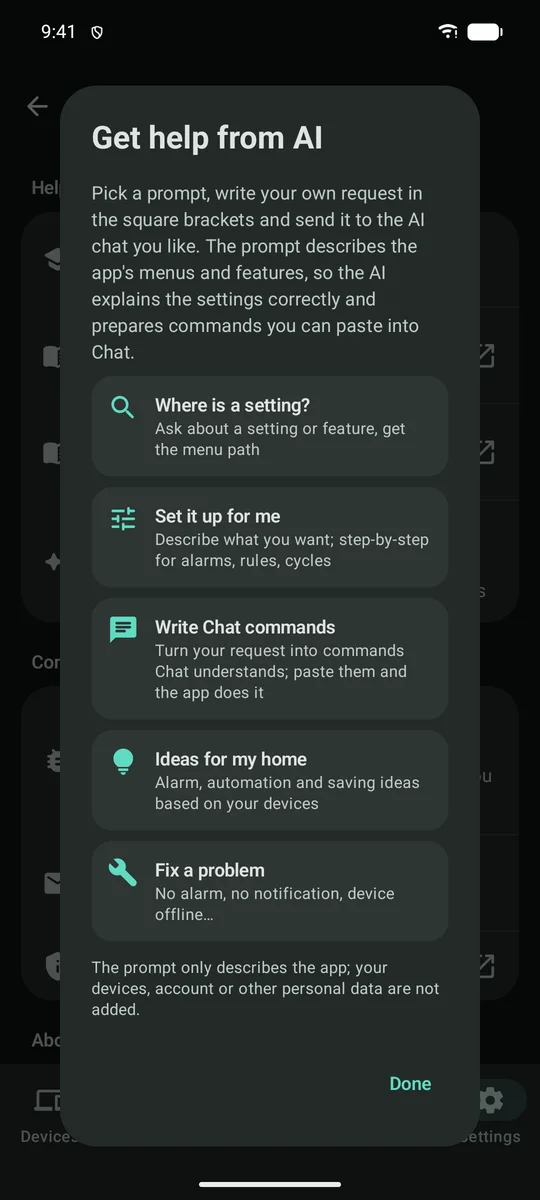
Help from AI
Ready prompts to paste into ChatGPT, Gemini or Claude, with a description of the app built in.
- Where is the setting? find the menu path for any setting.
- Set it up for me: get step-by-step help building the rule you want.
- Write a chat command: commands and templates suggested for your task.
- Ideas for my home and Troubleshoot: get ideas, or find out why an alarm doesn't come.
- No personal data: your device names and account details are never added to the prompts.
Where: Settings → Help → Help from AI
What it can't do
- Set AC temperature or send IR commands
- Show camera feeds
- Run on iPhone / iPad
Set it up in minutes, sleep with peace of mind.
Free. No account needed; try the demo first.